02 · Reference Field types in depth
TL;DR 8 types — Photo, Audio, Text, Number, Dropdown, Checklist, Date, Section. The status pill drives pin colour.
What each field accepts, how it looks empty, how it looks once an inspector fills it in, and the bits that aren't obvious until someone shows you.
The editor and the sheet
Two views matter: the editor where you design the template, and the sheet the inspector sees on a pin. Same fields, two presentations.
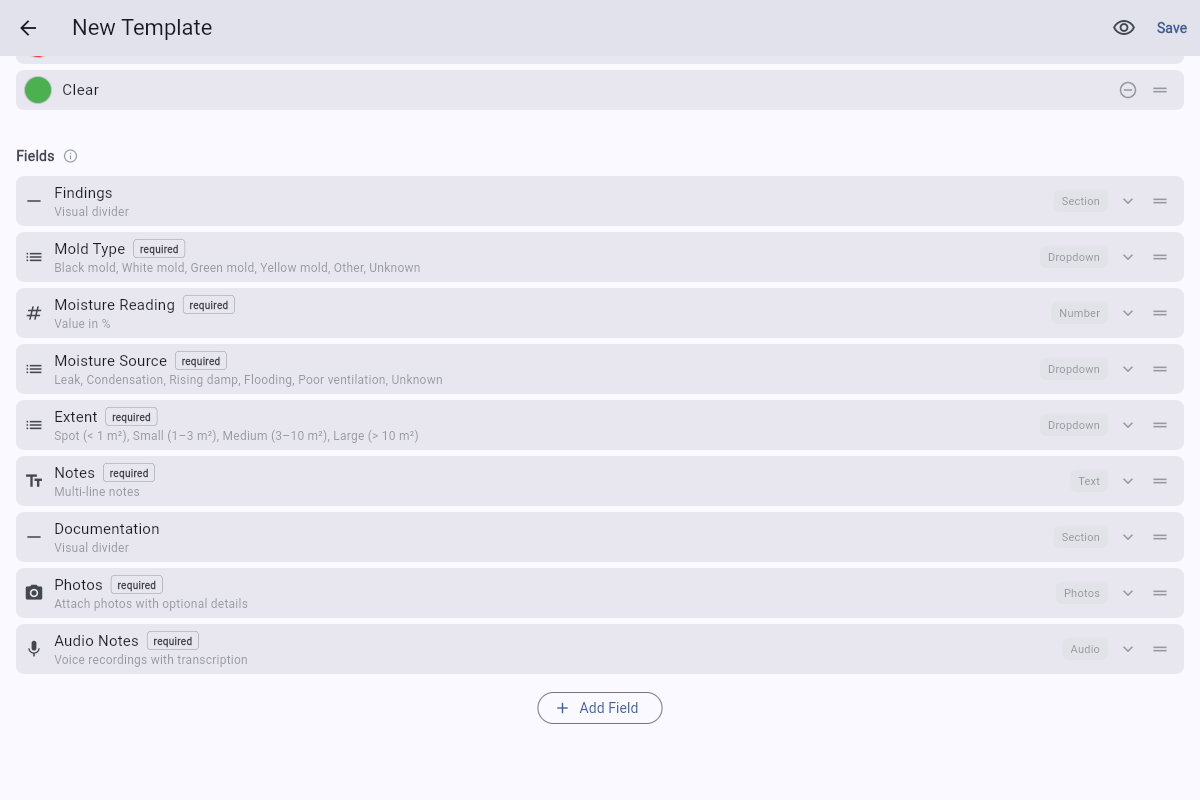
Show how it looks to the inspector
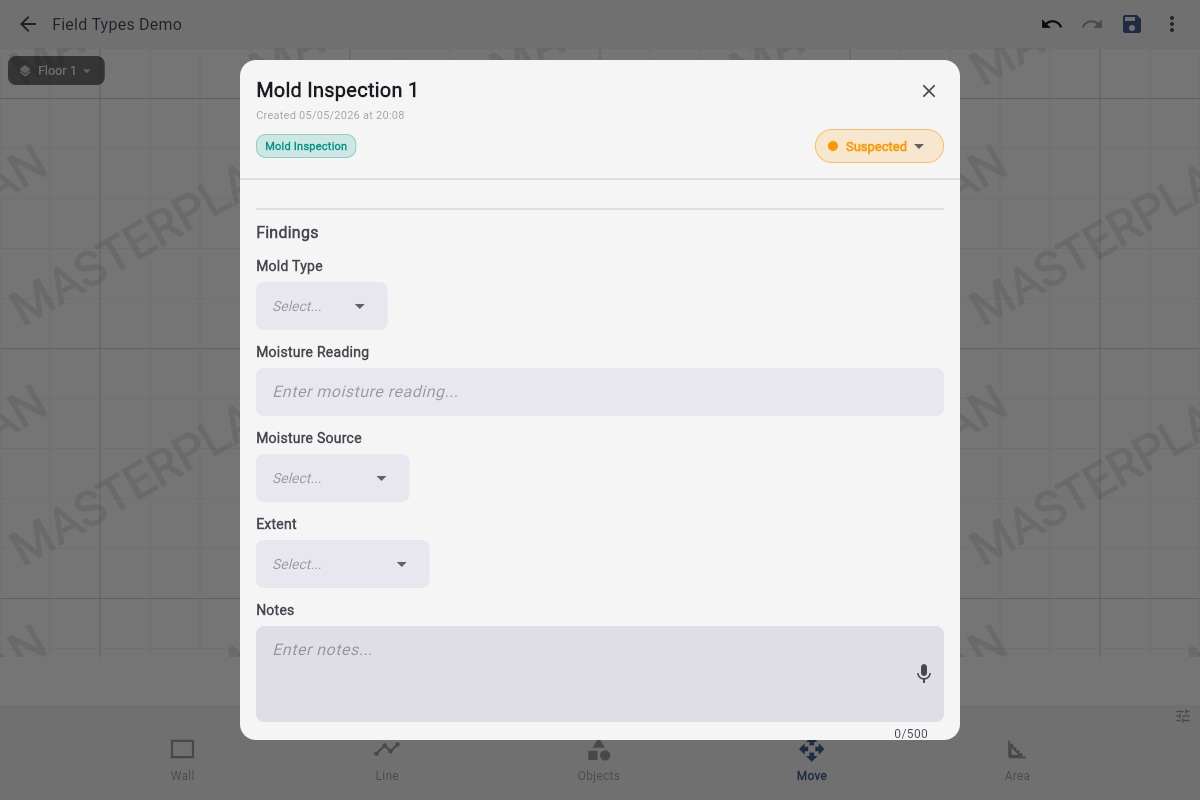
Status pill & pin colour
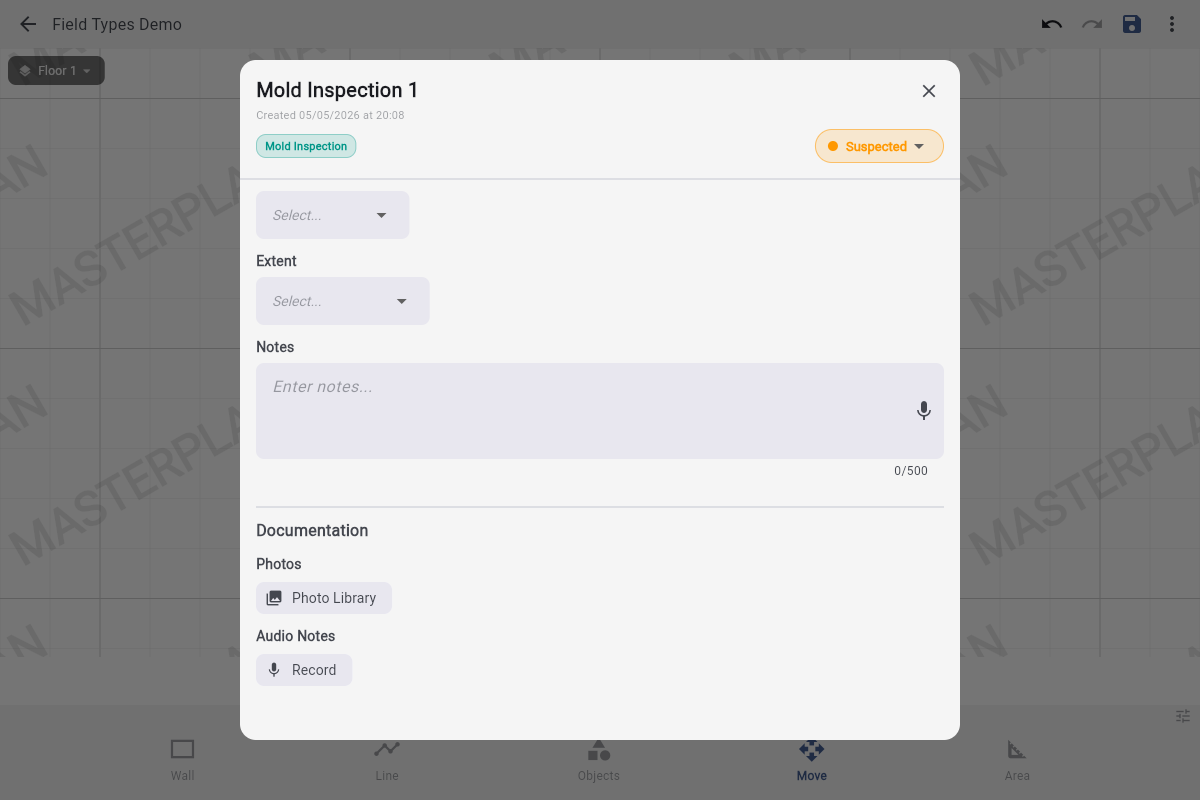
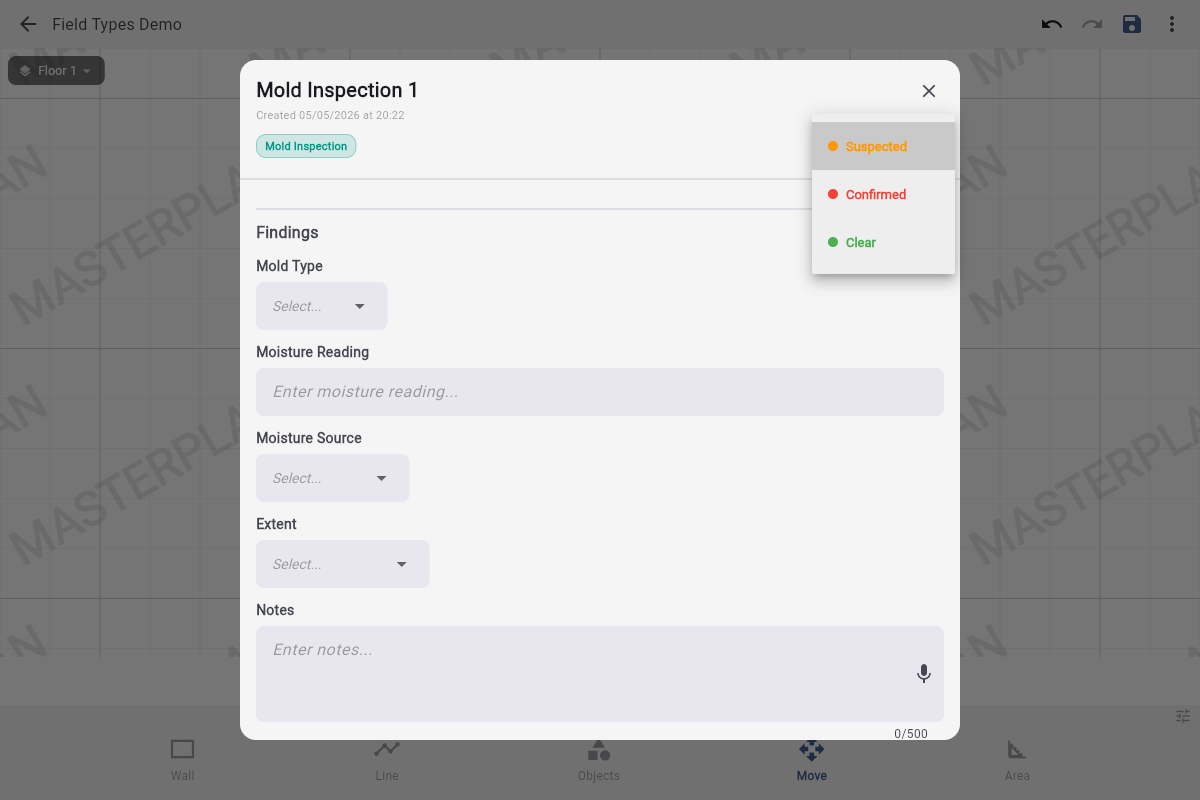
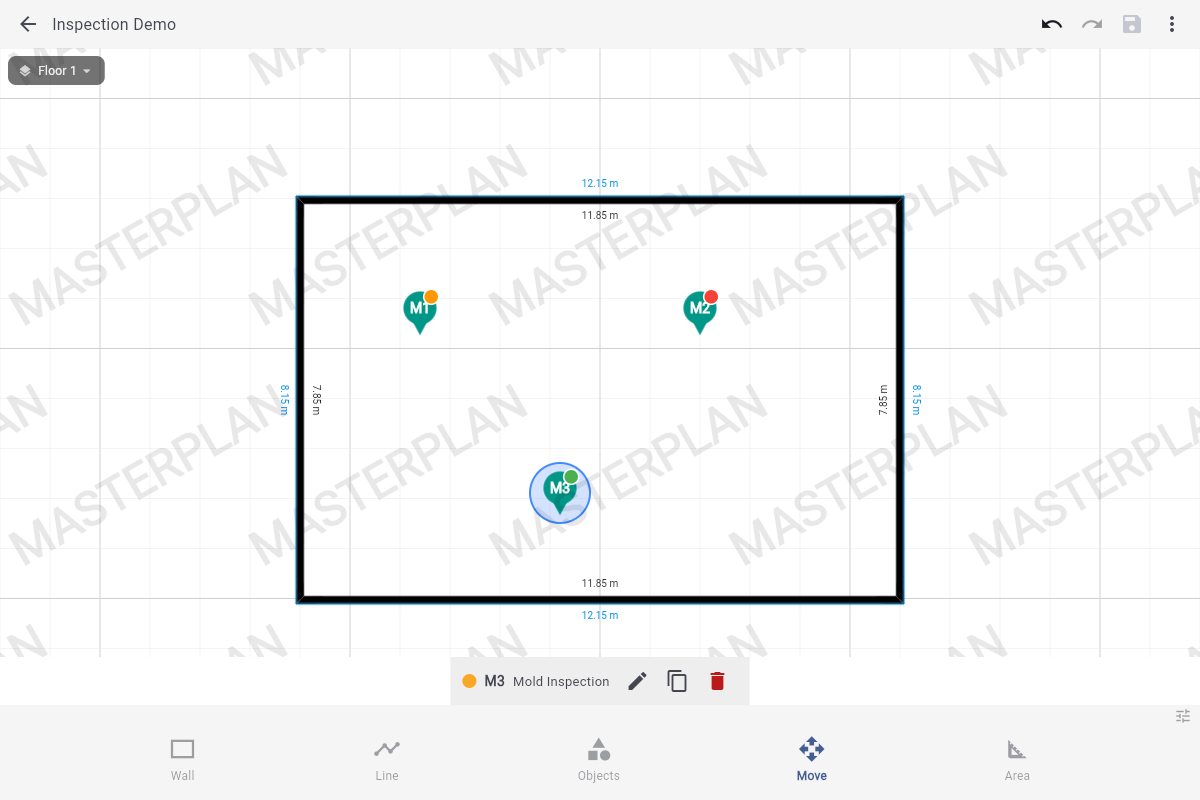
Above the fields sits the status pill: not technically a field, but the most important control on the sheet. Each template defines its own list of statuses (up to six), each with a label and a colour. The chosen status shows up on the canvas as a small dot on the pin — so a glance at the floor plan tells you which observations are still open.
The eight field types
📷 Photo
Capture and annotate photos. Each photo can carry a one-line caption from your preset list, plus optional per-photo subhead fields you define in the template.
Configure
- Caption presets — tap-to-apply shortcuts like "Before", "After", "Damage", "Affected area".
- Subhead fields — one-line text fields per photo (e.g., "Room", "Surface", "Sample ID").
- Required — force at least one photo before the sample can be marked complete.
Examples: mold patches at varying scales · before/after pairs of remediation work · damaged drywall close-ups · tagged samples for the lab.
🎙️ Audio
Voice notes recorded on the device, with optional on-device transcription so spoken text becomes searchable text inside the report.
Configure
- No options. Audio is intentionally minimal — just record and review.
- Required — useful for inspections that always need a verbal walkthrough.
Examples: walking commentary as you survey a room · client interviews · safety observations dictated hands-free while wearing PPE.
Tt Text
Free-form text. Stored as a plain string, capped at 500 characters per field. The microphone icon dictates straight into the field using the same on-device model the audio fields use.
Configure
- Multiline — off for short labels (e.g. "Sample ID"); on for paragraphs that need to wrap.
- Required — rarely useful for free text, but available.
Show filled state
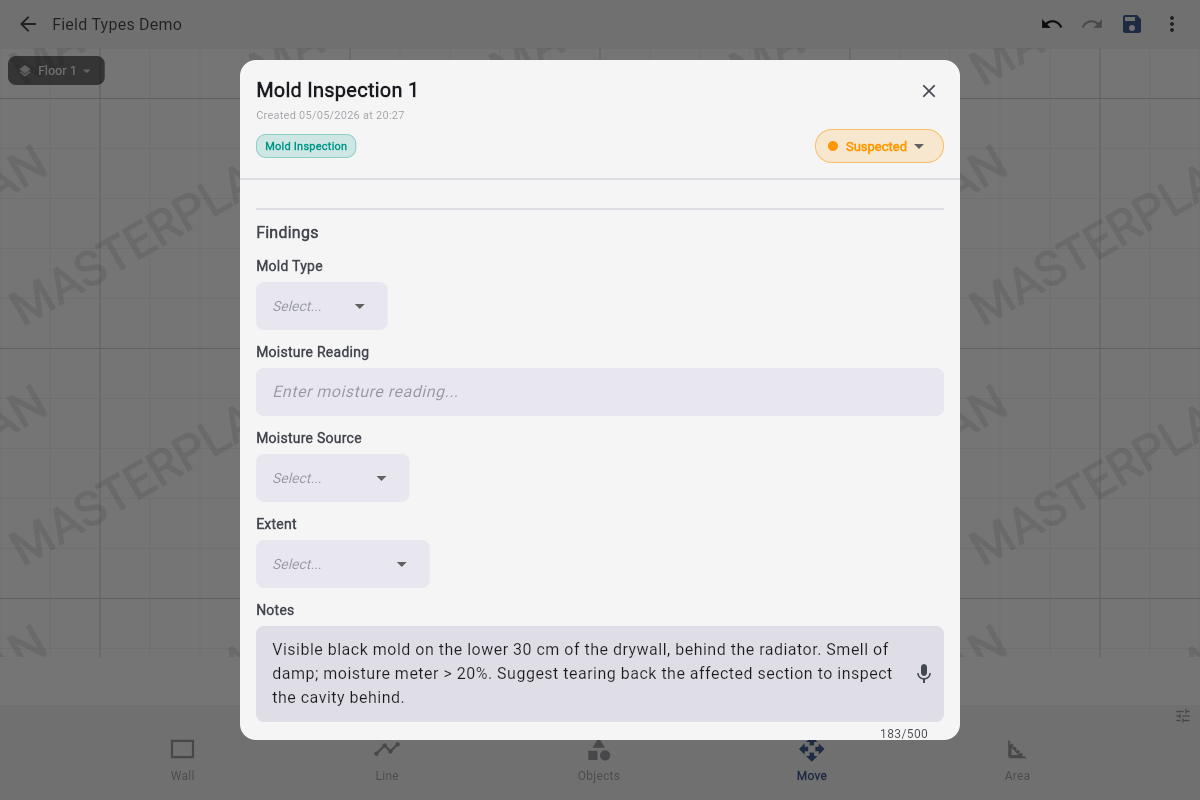
Examples: Notes (multiline) · Sample ID (single-line) · Tenant comment (multiline verbatim quote).
# Number
A numeric value. The unit you set in the editor renders as a hint inside the field — the data layer stores just the number, while the unit travels alongside as metadata for reports.
Configure
- Unit — freeform text (
%,°C,pCi/L,m²,V). Stored as metadata; not parsed. - Required — for any reading the inspection always needs (e.g., a moisture reading on a Mold template).
Show filled state

23. The % hint comes from the field's configured unit.
Examples: Moisture Reading (%) · Radon Concentration (pCi/L) · Affected Area (m²) · Outlet Voltage (V) · Temperature (°C).
⌄ Dropdown
One-of-many selection. The inspector picks exactly one option from the list you defined.
Configure
- Options — ordered list of labels. The order in the editor is the order shown to the inspector.
- Required — combine with an "Other" or "Unknown" fallback option so a required field always has a valid answer.
Show open and filled states
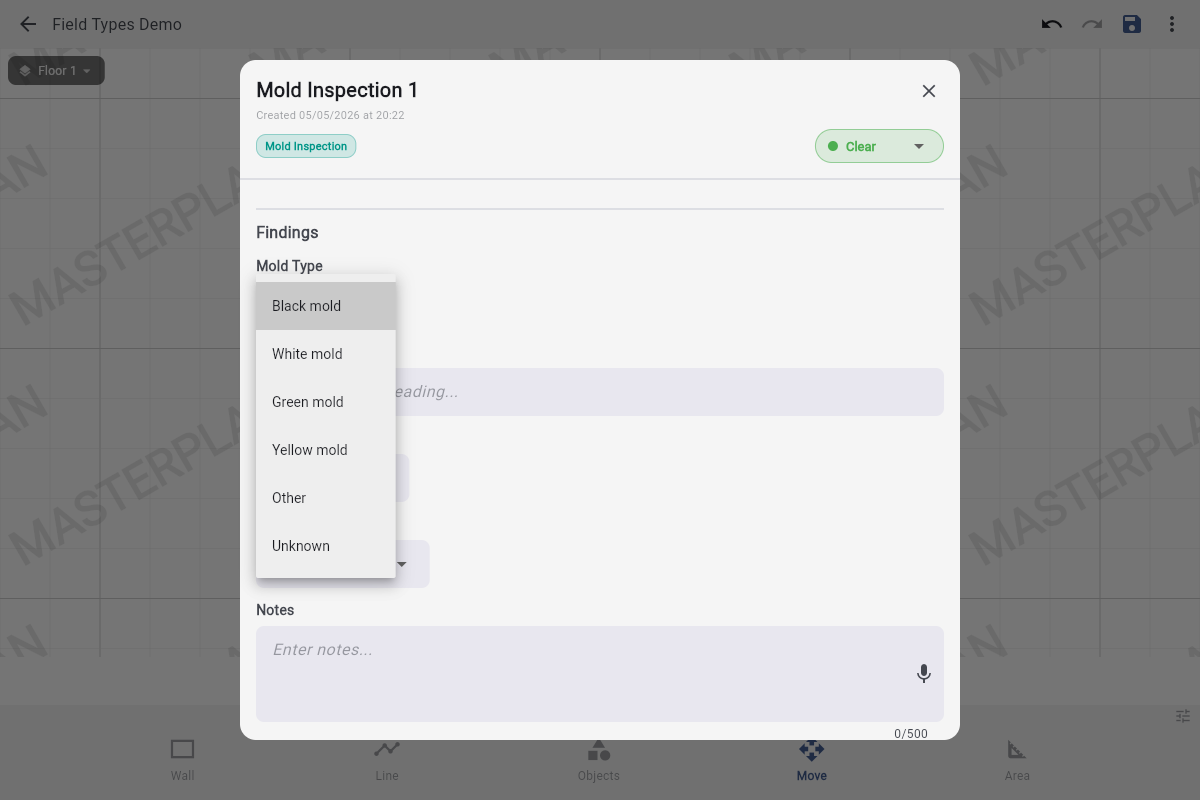
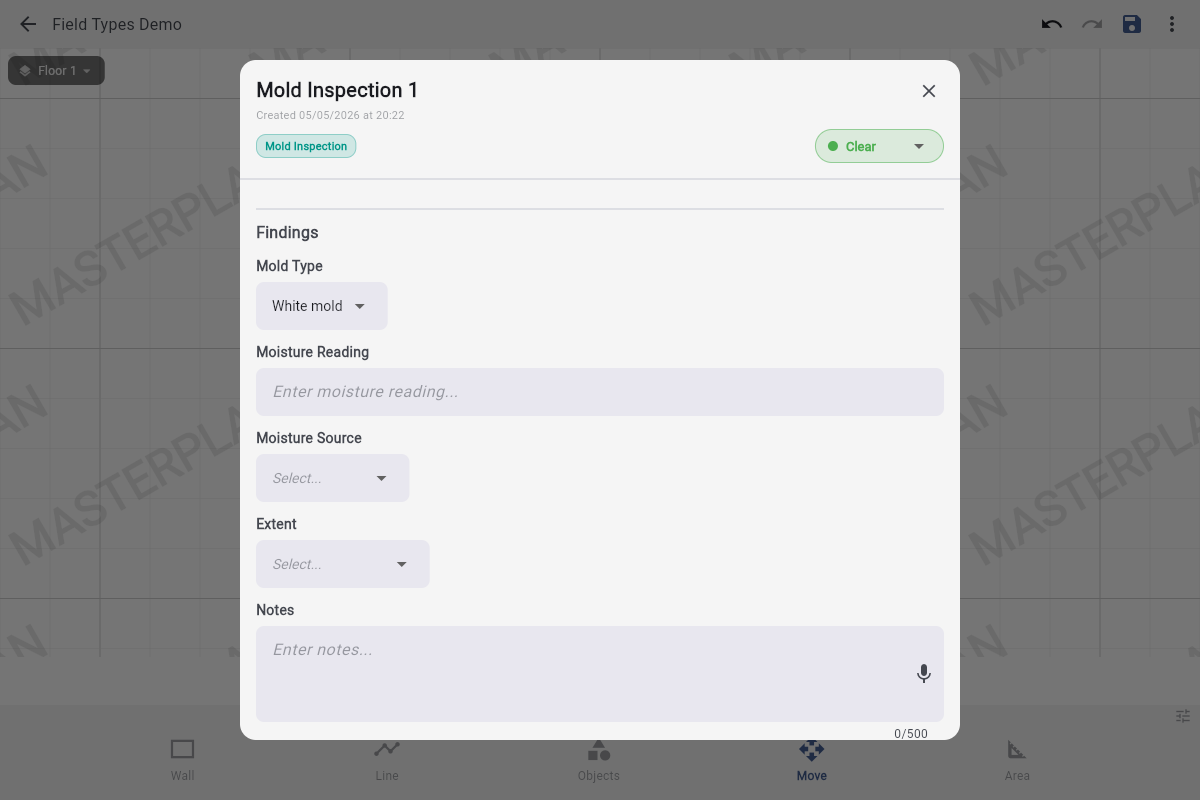
Examples: Mold Type · Material (Drywall, Plaster, Wood, Concrete) · Severity (Low, Medium, High) · Friability (Friable, Non-friable).
☑ Checklist
Many-of-many selection. Use this when the inspector might tick zero, one, or multiple items from a list — not just one.
Configure
- Items — ordered list of checkboxes. Inspector ticks any subset; an empty answer is allowed by default.
- Required — if on, at least one item must be ticked before the sample can be marked complete.
Renders as a vertical list of tappable checkboxes. Each tick stores the item's stable ID, so renaming an item later doesn't lose history.
Examples: Visible signs (Discoloration, Warping, Staining, Smell) · Tools used (Moisture meter, Thermal camera, Borescope) · Documents collected (Floor plan, Lease, Photos, Lab results).
📅 Date
Capture a date, a time, or both. The configuration toggles decide which picker the inspector sees.
Configure
- Include date — on by default.
- Include time — off by default; turn on for timestamped events ("RCD trip at 14:32").
- Required — useful when the date drives downstream logic (sample chain-of-custody, follow-up).
A native date picker on tap; a time picker too if "Include time" is on. The displayed format follows the device locale — UK inspectors see DD/MM/YYYY, US inspectors see MM/DD/YYYY without you doing anything.
Examples: Sample collected (date) · Last serviced (date) · Alarm triggered (date + time) · Site visit (date) · Tenant signature (date).
— Section header
Not a data field — a visual divider that groups the fields below it. Use generously to keep long forms scannable.
Configure
- Label — short title for the section ("Findings", "Documentation", "Recommendations").
- Required — not applicable; section headers don't capture data.
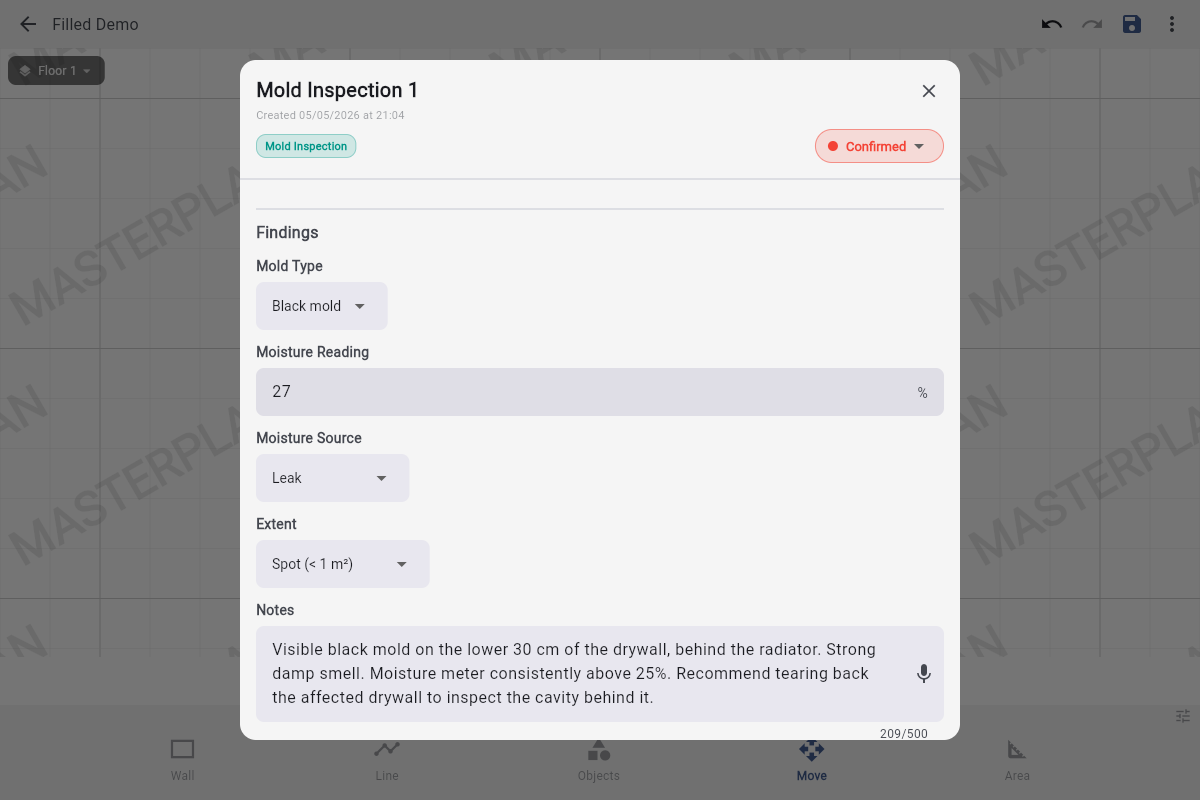
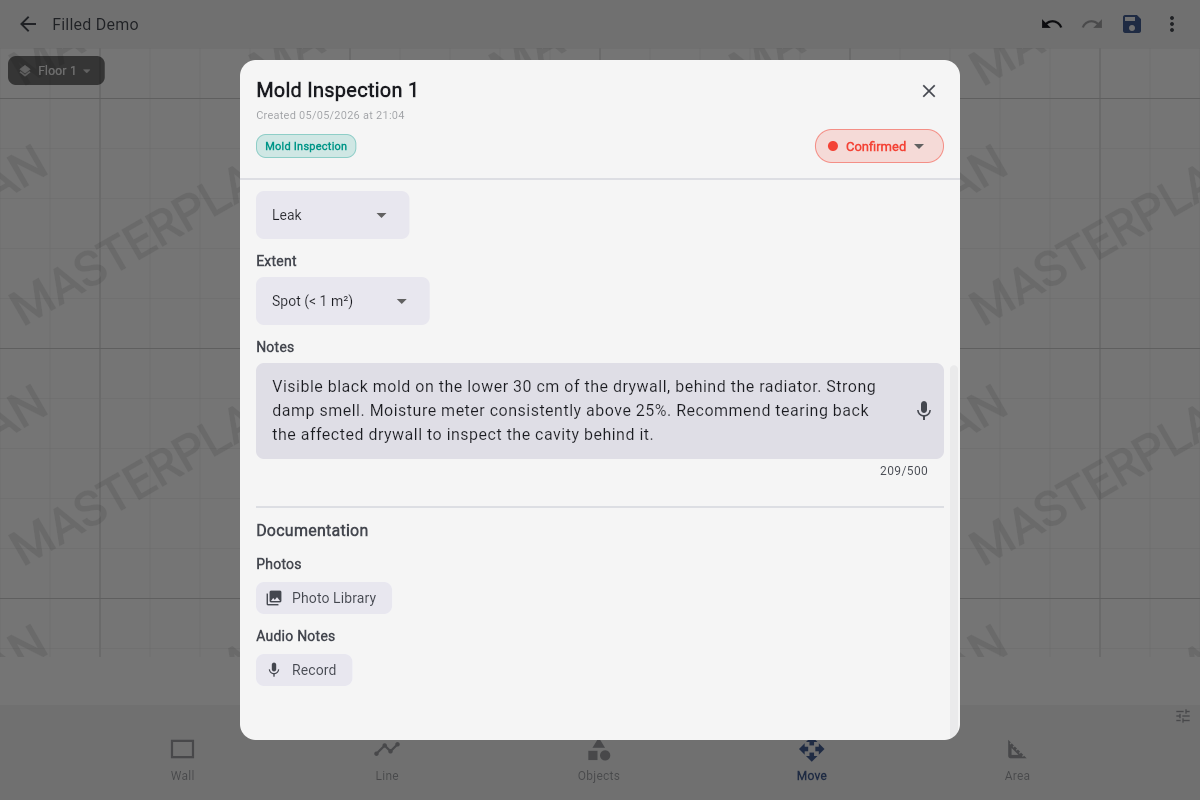
Renders as a thin rule with the label above it. The Mold preset uses two: "Findings" (the structured data) and "Documentation" (photos and audio).
Common pattern: open with "Findings", close with "Documentation". Add "Recommendations" if your inspections always end with one.
A fully filled sample, end-to-end
Putting it together: one Mold sample with every field populated. Status set to Confirmed, each dropdown picked, moisture reading typed, multi-line Notes captured.
Show the filled sheet